You keep seeing the option pop up: "Create a passkey." Your phone asks for your fingerprint or face, something happens, and next time you sign in there is no password to type at all. It feels a little like magic — and, honestly, a little suspicious. What just replaced your password, and is trusting your face to log in to your bank actually safe?
The short version: a passkey is a new way to sign in that swaps your typed password for your device's own lock — the same fingerprint, face, or PIN you already use to unlock your phone. There is no password stored on the website to be stolen, and nothing for you to remember, reuse, or accidentally hand to a scam site. This guide explains, in plain language, how passkeys work, why they are a genuine security upgrade over passwords, where they fall short today, and exactly how to turn one on.
The problem passkeys are trying to fix
Passwords have two flaws that no amount of "make it stronger" advice ever fixed.
First, they get stolen in bulk. When a company gets breached, attackers walk away with millions of passwords at once — and because most people reuse the same one, a leak from a random forum becomes a key to your email. (If that has ever happened to you, our guide on what to do after a data breach walks through the cleanup.)
Second, passwords can be phished. A convincing fake login page tricks you into typing your real password, and now the attacker has it. You did nothing careless; the page just looked right.
Passkeys are designed so neither of those attacks works. There is no shared secret sitting on a server to steal, and — this is the clever part — a passkey simply refuses to work on a fake site.
How a passkey actually works
Here is the whole idea without the cryptography lecture.
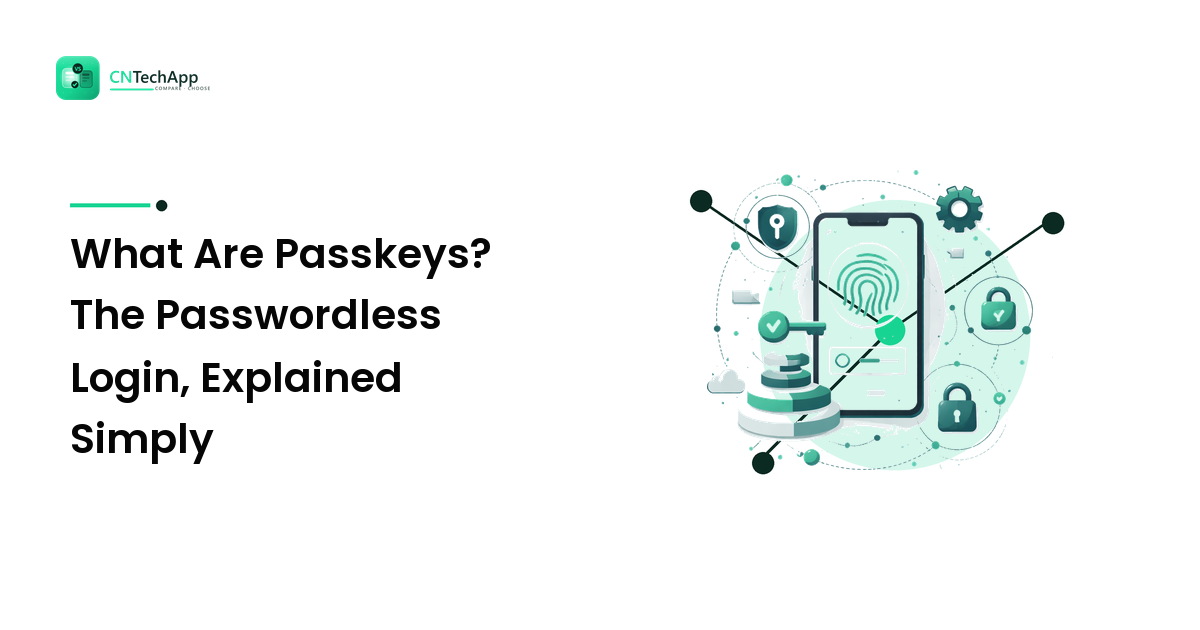
When you create a passkey for a website, your device quietly makes a matched pair of digital keys. One key is private and never leaves your phone or laptop — it stays locked behind your fingerprint, face, or PIN. The other key is public, and the website keeps a copy. Think of the public key as a padlock the site holds, and the private key as the only key that opens it, which stays in your pocket.
To sign in, the website sends a little puzzle that only your private key can solve. Your phone asks you to confirm with your fingerprint or face, solves the puzzle, and sends back the answer. The site checks it against the public key and lets you in. Your private key — the actual secret — never travels across the internet and is never stored on the website at all.
Two things fall out of this design, and they are the reason passkeys matter:
- There is nothing useful to steal in a breach. A hacker who dumps the website's database only gets public keys, which are useless on their own — like stealing a stack of padlocks with no keys.
- A passkey won't work on a fake site. Each passkey is tied to the exact web address it was made for. A phishing page at a look-alike domain simply isn't the site your passkey belongs to, so it can't be tricked into logging in. This alone shuts down the most common way ordinary people get hacked.
Notice what you didn't have to do: memorize anything, invent a "strong" password, or judge whether a login page is genuine. The security happens underneath, automatically.
Passkeys vs passwords, side by side
To keep the comparison fair, here is where each one genuinely wins.
- Effort: A password makes you remember and type. A passkey is a fingerprint or a glance. Passkeys win on convenience.
- Phishing: A password can be typed into a fake site. A passkey can't. Passkeys win, decisively.
- Breaches: Steal a password database and you get passwords. Steal a passkey database and you get useless public keys. Passkeys win.
- Works everywhere: Passwords work on essentially every site and device made in the last thirty years. Passkeys are still rolling out. Passwords win on universality — for now.
- Recovery if you lose your device: With passwords you just re-type on a new phone. Passkeys need a little more thought (covered below), though syncing has largely solved it.
The honest takeaway: passkeys are safer and easier for the sites that support them, but they haven't reached every corner of the internet yet. That is why the smart move today is to add passkeys where you can while keeping a strong-password setup for everything else.
"But what if I lose my phone?"
This is the question everyone asks, and it's a good one — losing the device that holds your keys sounds terrifying. In practice, it's handled.
On most modern phones and computers, passkeys sync securely through your account — Apple stores them in your iCloud Keychain, Google in your Google Password Manager, and standalone password managers sync them across your devices too. Buy a new phone, sign in to your Apple or Google account, and your passkeys come with you, still locked behind your fingerprint or face. Nothing is stranded on the lost device, and whoever finds it can't use your passkeys without your biometrics or PIN.
Two habits make this bulletproof: keep the account that syncs your passkeys (Apple, Google, or your password manager) protected with strong two-factor authentication, and when a site lets you, register a passkey on more than one device so you always have a backup way in. If you're still choosing where to store all this, our guide to choosing a password manager covers the passkey-friendly options.
How to set up your first passkey
The exact wording varies by site, but the flow is almost always the same. Start with one account you care about — your email or a shopping site is perfect.
- Open the account's security settings. Look for a section called Security, Sign-in, or Password.
- Find "Passkeys" or "Passwordless sign-in" and choose Create a passkey / Add a passkey.
- Confirm with your device lock. Your phone or laptop will prompt for your fingerprint, face, or PIN — that's you approving the new key. There's no password to invent.
- Choose where to save it. You'll usually be offered your phone, your Apple/Google account, or your password manager. Saving to an account that syncs means it follows you to new devices.
- Test it once. Sign out and sign back in with the passkey so you know it works before you rely on it.
That's the whole process — typically under a minute. Keep the existing password on the account as a fallback until passkeys feel natural; you're adding a faster, safer front door, not throwing away the old key just yet.
Are passkeys safe to trust?
Yes — and it helps to know one reassuring detail: your fingerprint or face never leaves your device. The website never receives your biometrics. All the fingerprint or face does is unlock the private key that's already on your phone; the site only ever sees the puzzle-solving proof, not your actual face data. This is the same secure hardware your phone already uses to protect payments and unlock the screen.
Passkeys aren't a fad, either. They're built on an open industry standard backed by Apple, Google, and Microsoft together, which is why the same passkey concept works across iPhones, Android phones, Windows, and Macs. The direction of travel is clear — passwords are slowly being retired — but until every site catches up, treat passkeys as the upgrade you switch on wherever it's offered.
If you want the bigger picture of locking down your accounts and your phone, start with our phone privacy and security guide and pair passkeys with the habits there.
Frequently asked questions
Do I still need a password if I use passkeys?
For now, usually yes as a backup. Most sites let you keep a password alongside a passkey while the technology finishes rolling out. Use the passkey day to day, and keep a strong, unique password (stored in a manager) as a fallback for the rare device or site that can't use the passkey yet.
Can someone steal my passkey?
Not remotely, which is the whole point. The private key never leaves your device and is locked behind your fingerprint, face, or PIN, so there's nothing on a website's server for a hacker to grab. Someone would need your physical device and your biometrics or PIN to use it.
Do passkeys work across iPhone and Android?
The standard is shared across platforms, so passkeys work on iPhone, Android, Windows, and Mac. Syncing your passkeys between an iPhone and an Android phone is less seamless because they use different accounts, but you can register a passkey on each device, and cross-device sign-in (scanning a QR code with your phone) bridges the gap.
What happens to my passkeys if I switch phones?
They come with you, as long as they were saved to an account that syncs — your Apple account, Google account, or password manager. Sign in to that account on the new phone and your passkeys are there, still protected by your new device's lock.
Is a passkey the same as two-factor authentication?
Not exactly, but it does a similar job in one step. A passkey combines something you have (your device) with something you are (your fingerprint or face), so it's inherently strong. Many sites treat a passkey as satisfying both your password and your second factor at once.