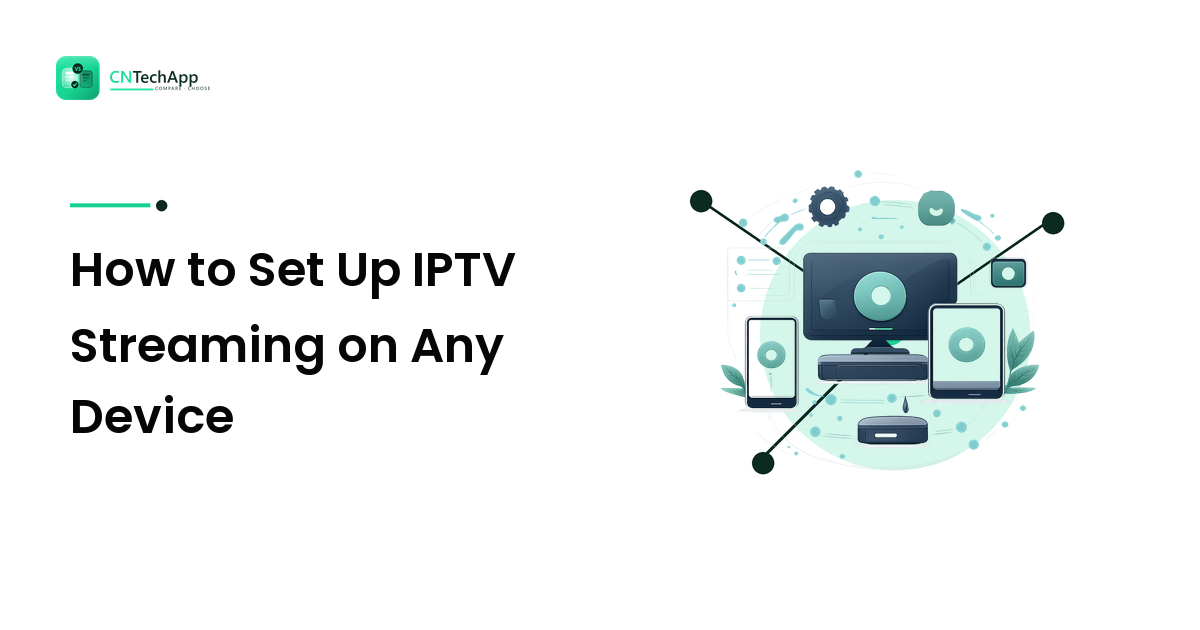
IPTV (Internet Protocol Television) delivers live TV channels and on-demand content over the internet instead of cable or satellite. Setting it up is straightforward once you understand the two pieces: an IPTV subscription (which provides the content stream) and a player app (which displays it on your device). This guide walks through the full setup on every major device type.
For broader online safety when streaming, see our online safety basics — IPTV is an internet service, and the same precautions apply.
What You Need Before You Start
- An IPTV subscription. This gives you access to the channel list and content library. Providers like 4K Gold TV offer packages with tens of thousands of channels and VOD content in 4K.
- A compatible device. Smart TV, streaming box (Fire Stick, Apple TV, Android TV), smartphone, tablet, or computer.
- A stable internet connection. IPTV streams in real-time, so bandwidth matters. Minimum 10 Mbps for HD, 25+ Mbps for 4K.
- A player app. The app that reads your IPTV playlist and plays the streams.
Setup: Smart TV (Samsung / LG)
- Download an IPTV player from the TV's app store. Popular options: Smart IPTV, Set IPTV, or TiviMate (Android TV only).
- Launch the app and note the MAC address displayed on screen.
- Go to the app's website (e.g., siptv.app) and upload your playlist URL or file using the MAC address.
- Restart the app on your TV. The channel list loads automatically.
Setup: Amazon Fire Stick
- Install the Downloader app from the Amazon App Store (needed to sideload IPTV apps).
- Use Downloader to install an IPTV player like TiviMate or IPTV Smarters. Enter the download URL for the APK.
- Launch the player app and enter your playlist URL (provided by your IPTV subscription).
- Wait for the channel list to load, then start watching.
Setup: Android Phone / Tablet
- Install IPTV Smarters or TiviMate from the Google Play Store.
- Open the app and select "Add Playlist" or "Load Your Playlist."
- Enter the M3U URL or Xtream Codes provided by your IPTV subscription.
- Allow the app to load the channel list (may take 30 seconds for large playlists).
Setup: iPhone / iPad
- Install GSE Smart IPTV or IPTV Smarters from the App Store.
- Add your playlist via URL or file upload.
- Select a channel and start streaming.
Setup: Windows / Mac
- Install VLC Media Player (free) or a dedicated IPTV player like MyIPTV Player (Windows).
- In VLC: Media → Open Network Stream → paste your M3U URL.
- For channel navigation, use a dedicated IPTV player that displays the channel list as a guide.
Troubleshooting Common Issues
- Buffering/freezing. Usually a bandwidth issue. Test your internet speed; if below 10 Mbps, upgrade your plan or reduce stream quality. Some providers offer anti-freeze servers — 4K Gold TV advertises antifreeze technology.
- Channels not loading. Check that the playlist URL is correct and hasn't expired. Contact your provider if the issue persists.
- App crashes. Update the player app to the latest version. Clear the app cache on Android.
- No EPG (TV guide). Some providers include an EPG URL alongside the playlist URL. Enter both in your player app settings.
Choosing the Right IPTV Provider
- Channel count and quality. How many channels, and in what resolution (HD, FHD, 4K)?
- VOD library. Does it include movies and series on demand?
- Device compatibility. Does it work on all your devices?
- Anti-freeze technology. Server-side buffering reduces stream interruptions.
- Trial period. Reputable providers offer a 24-48 hour trial so you can test before committing.
- Customer support. Look for providers with a contact method and response time.
Frequently Asked Questions
Do I need a VPN for IPTV?
A VPN is not technically required for IPTV, but it adds a privacy layer by encrypting your internet traffic. Some ISPs throttle streaming traffic, and a VPN can prevent that. Choose a VPN with high speeds and no data caps.
Can I watch IPTV on multiple devices simultaneously?
It depends on your subscription plan. Some plans allow one stream at a time; others allow multiple simultaneous connections. Check the plan details before subscribing.
What internet speed do I need for IPTV?
Minimum 10 Mbps for HD streaming, 25+ Mbps for 4K. Test your speed during peak hours (evenings) to ensure consistent quality. WiFi is fine if the signal is strong; a wired Ethernet connection is more stable.
Is setting up IPTV difficult?
No. The setup is two steps: install a player app on your device, then enter the playlist URL from your subscription. Most player apps guide you through the process. The hardest part is choosing the right player app for your device.
Final Thoughts
Setting up IPTV is a straightforward process: choose a subscription, install a player app, enter your playlist, and start watching. The player app is the interface; the subscription provides the content. Run through the setup for your specific device, test with a trial before committing, and ensure your internet connection meets the minimum bandwidth for the quality you want.